

If you're running a blog in blogger platform, you should notice, sometimes your site is redirected to local domains. I mean your site is redirected to country specific URL. But it doesn't happen in all countries. Maybe 15 - 20 countries have their own blogger domain. But Google will implement the local domains for blogger blogs in other countries very soon!
Let's give me an example:
You know the URL of Marks PC Solution is - http://softwareduck.blogspot.com
- If you're Italian you will see my site's URL as- http://softwareduck.blogspot.it
- A Canadian will see my site's URL as - http://softwareduck.blogspot.ca
- An Indian will see my site's URL as- http://softwareduck.blogspot.in
Okay fine! Blogger has its own local domains for different countries. But what's wrongwith this country specific URL? There are a number of problems:
- Your social stats (+1, Likes, Tweets) may fall dramatically due to the variations in domain.
- Your search ranking might be affected.
- If blogger is banned in a country with the help of local domain, your site can't be visited from there!
Though Google says, they are trying to minimize the negative consequences of hosting blogger. But why are you waiting for Google's effort? You can force local domains to redirect to .com version of your site with a simple code!
Prevent Blogger's from Redirection:
Officially Google never mentioned any permanent way to stop redirecting. But it said if you type /ncr just after the domain name for example- http://softwareduck.blogspot.com/ncr, then it will not redirect to your local domain.
And if you want to do this for individual post then it should be like that:
http://softwareduck.blogspot.com/ncr/exaplepage
Anyway, as a blog master your shouldn't let the visitors follow any boring way to prevent redirection. Because you can control the redirection by the code below! Okay let's try:
- Make sure you're signed in to your blogger's control panel I mean design or dashboard.
- Now go to the template option. (Backup your template if necessary)
- Click on Edit HTML. Now you can see the code of your template.
- Hit on the template box and Press Ctrl+F to enable search within the code box.
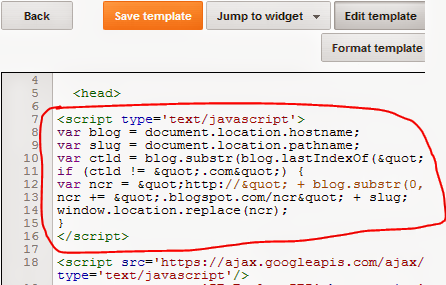
- find the <head> of your template and then copy the code below and place it just below the head tag. (Look at the image below)
- Save the template. Done!
<script type='text/javascript'>var blog = document.location.hostname;var slug = document.location.pathname;var ctld = blog.substr(blog.lastIndexOf("."));if (ctld != ".com") {var ncr = "http://" + blog.substr(0, blog.indexOf("."));ncr += ".blogspot.com/ncr" + slug;window.location.replace(ncr);} <!-- softwareduck.blogspot.com -->
</script>
From now and then your visitors will only be able to visit the .com version of your site. I mean like that: http://softwareduck.blogspot.com.
You can also test whether it works or not. Type http://softwareduck.blogspot.it in your browser. But it will redirect you to http://softwareduck.blogspot.com. Also check this for your site.
Removing the Code:
I don't think it is necessary. For any reason, if you are reluctant to use this code, follow the steps above again. And then at the 5th step, delete the code and save your template. Or if you have a backup of your template, you can also restore it. But deleting the code is much easier.
What about the Registered/ Custom Domain?
If you blogger blog is registered I mean if you have a custom domain like .com or .org you don't need implement this code. Because the redirection is not applicable for a site with custom domain.
What happened if blogger is banned in a country?
Naturally when blogger is banned by the Govt. of a country the visitors from that country will not be able to see your site. But they will be able to visit the .com version of your site by using /ncr just after the domain. But if you use the above code in your site, visitors will automatically be able to visit your site!
I think now you understand the importance of using this code . . . :)


